A business WhatsApp number usually lives on one phone, in one pocket. The moment two people need to answer from it, the workarounds start: the phone passed around, WhatsApp Web open on three laptops with no idea who replied, screenshots forwarded to whoever is supposed to deal with it.
Spun turns that one number into an inbox the whole team works in, each person signed in as themselves. Everyone sees the same conversations, the same history and the same contacts. Each of them has a role that decides what they may do, and the owner can share the whole inbox or just a slice of it. This page explains exactly what is shared, what stays personal, which privileges each role has and which are held back, and what a shared inbox in Spun does not try to do.
One number, every teammate signed in as themselves
Spun connects to the WhatsApp number you already have through WhatsApp's linked-device mechanism, so the inbox is the same conversations your phone holds. Sharing it does not mean handing out a password. Every teammate has their own Spun login, and the shared inbox appears in their account next to anything else they have access to, labelled with the name of the person who shared it. Switching between a personal workspace and a shared one is one click, and nothing in one leaks into the other.
Members are unlimited and cost nothing extra. There is no per-seat fee on any plan. Sharing the inbox out is included on every paid plan, Pro, Max 10x and Max 40x alike, with all four roles below available on each of them. During the free trial you can accept an invitation into someone else's inbox, but sharing your own inbox out begins with a paid plan.
One inbox is one WhatsApp number. If you add a second number to your account, it becomes its own inbox with its own member list, which starts as "only me" until you choose who else gets in. Each person you pick joins the new line with the same role they hold on the first one, and moving between the two lines works the way moving between workspaces does.
- Each member signs in with their own account. Nobody shares a password or a phone.
- Unlimited members, no per-seat pricing, on every paid plan.
- The shared inbox sits beside a member's own workspace, labelled "Shared by" the owner.
- A second WhatsApp number is a second inbox with its own access list, not a merged one.
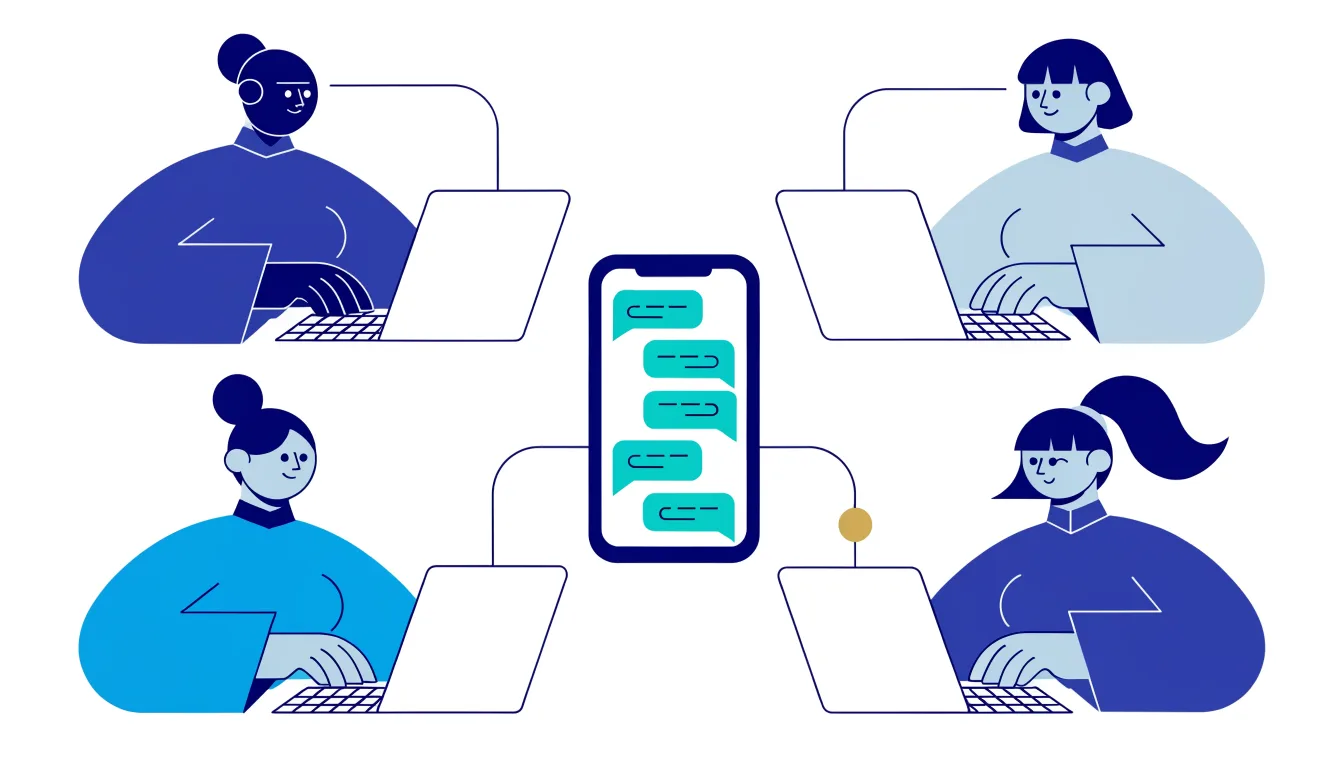
See who is handling what, while it is happening
The question a shared inbox has to answer all day is "is anyone on this?". Spun answers it live rather than with a status field someone has to remember to set. When a teammate opens a conversation, their initials appear on that row in the chat list for everyone else, grey while they are reading and amber the moment they start typing. Inside the conversation the header says it in words, "Dana is viewing" or "Dana and Yossi are replying".
If you start a reply while a colleague is already typing one, an amber line above your message box says so by name. It is a warning, not a lock: you can still send, because sometimes the right answer is that both of you know what is going on. The marker disappears when they leave the chat or switch tabs, and you never see your own presence, only other people's.
After the fact, every outgoing message carries the name of the teammate who sent it, shown above the bubble inside Spun. The customer sees none of this. Nothing is added to the message they receive, no name, no signature, no "sent via". To them it is simply the business replying from the number they know.
- Spread new conversations across the team with a rotation: each teammate gets a personal name label, and every new incoming one-to-one chat receives the next person's label in turn. You set the order, a weight from 1 to 20 for people who should get more, each person's working hours in their own time zone, and a pause until a date for someone who is away. Group chats and conversations you started yourself are left out. The rotation applies a label, which any filter or view can use; it does not lock a chat to a person or cap anyone's load.
- Set a first-response target in minutes, optionally counting business hours only and warning at a percentage of the target. Every member sees the live countdown on each waiting chat, and managers can review the history of targets that were missed.
- A leaderboard on the dashboard shows, per teammate, messages sent, conversations touched, average first response time and the share of replies inside the target.
Four roles, from read-only to full control
When you share the inbox you pick one of four roles for the person. The three scoped roles, Viewer, Team Member and Manager, only ever see the part of the inbox you share with them (the next section explains how that slice is defined). Full Control is the whole inbox, identical to your own access, and is the only role that can invite or remove people, see billing, or open the WhatsApp connection screen.
The roles are enforced on the server, not just hidden in the interface. A Viewer who finds the send button in a browser tool still cannot send; a Team Member who calls the contacts endpoint directly still gets a refusal. The chart shows the defaults for each role. When you share, you can also switch individual permissions on or off for that specific person, so "a Team Member who may also edit contacts" is a normal thing to set up.
- Viewer: reads the shared chats and contacts inside them, uses Team Chat, takes no action on a customer.
- Team Member: everything a Viewer has, plus sending, scheduling, AI-assisted replies and archiving, inside the shared slice.
- Manager: everything a Team Member has, plus contacts, shared labels, alarms for the team, payment reminders, campaigns, auto-replies, automations, tasks and the dashboard, still inside the shared slice.
- Full Control: the entire inbox with nothing held back, including the team itself, billing and the WhatsApp connection.
Exporting the whole contact list is Full Control only. Every role can use Team Chat, so even a Viewer can ask a colleague a question about what they are looking at.
Partial access: share a slice of the inbox, not all of it
Most teams do not want every person to see every conversation. A freelancer handling one product line, an accountant who only needs the invoicing chats, a new hire on a trial: each should see their part and nothing else. In Spun the slice is defined by saved filters, the same filters you already use to narrow the chat list. Share a filter with a person and the conversations that match it are the conversations they have. Share two filters and they have the union. Share none and they see nothing at all, which is exactly what the wizard will tell you before it lets you finish.
Because a stage on a pipeline board is a label under the hood, sharing a board is the same mechanism: the person sees the conversations on that board and no others. Labels, pipeline stages, and any other criterion a saved filter can express all work as a boundary. Scoped members with the Viewer or Team Member role also see contact details only for the people in their chats, never the full contact list.
Partial access is available with every paid plan, on every scoped role. It cannot be combined with Full Control, since Full Control means the whole inbox by definition. Access has no expiry date; it lasts until you change the role or remove the person, and both take effect on their next request.
- 1
Who
Type an email address or a phone number, or pick a contact. The person does not need a Spun account yet.
- 2
Role
Choose Viewer, Team Member, Manager or Full Control, and adjust individual permissions if the default is not quite right.
- 3
Pipeline
Optionally share a pipeline board, which becomes a filter over that board's stages.
- 4
Filters
Pick the saved filters that define their slice. Full Control skips this step, since it has no slice.
- 5
Review
See the whole grant in one place before it goes out.
Inviting people and taking access away
An invitation is a link. Send it by email, or, since the person you are inviting is probably already in your WhatsApp, send it to them from your own number in one tap or copy it to paste wherever you like. The link is valid for seven days, an inbox can have up to twenty invitations waiting at once, and re-inviting someone simply issues a fresh link. Whoever opens it accepts with whatever account they sign in with, so a colleague who uses Apple's hidden email addresses, or who signs up for Spun that minute, still lands in the right inbox.
Accepting an invitation never touches the person's own workspace. If they already run their own Spun inbox, yours is added beside it. Removing someone is one action in the Team panel, and it is thorough: their membership ends at once, and anything they set up under it goes with it, including a Gmail sending identity they connected, any home connection they were hosting for the inbox, and any API access they held. You cannot remove yourself, so an inbox is never left without its owner.
Related: How Spun connects to WhatsApp · Security at Spun
Working together inside a conversation
Seeing the same chats is the start. The rest of a shared inbox is the layer the customer never sees, where the team coordinates about the conversation without leaving it.
- Team notes: a private notes panel on every conversation. Every member with access reads the same notes, nothing in them is ever sent to the customer, and a note can be deleted by the person who wrote it or by a manager.
- Mentions: type @ in a team note and pick a colleague. They get a push notification that names you and the chat, and it follows their Team Chat notification setting rather than the customer-chat one, so muting customer noise never mutes a colleague calling your name. Mentioning yourself sends nothing.
- Team Chat: direct messages and group threads between members, with reactions, polls, read receipts, stars, pins and attachments, plus a discussion thread that can be attached to a task.
- Tasks: create a task from a message or a conversation, name the person responsible and optionally the person who will do it, which can even be a contact outside the team. Due dates, recurring schedules, checklists, comments and a board view are all there.
- Follow-up alarms: set a reminder on a conversation. Alarms are private by default and can be shared with the team, and a member can filter to the ones meant for them.
Related: Tasks and the task board · Calendar inside your inbox
What a shared inbox in Spun deliberately does not do
A page that lists only the good parts is a page you cannot plan around. These are the boundaries as they stand, stated plainly so nobody discovers them on day two.
- There is no "assign this conversation to Dana" button and no owner field on a chat. Spun shows who is on a conversation right now and lets a rotation label new chats by person; it does not make one person the owner of a chat.
- Nothing stops two people replying at once. The amber warning tells you a colleague is typing; it does not lock the conversation.
- The customer never sees which teammate answered. Attribution is internal only.
- Unread, archive, pin and mute are per conversation, not per person. One member reading a chat clears it for the team.
- A team note can be written and deleted but not edited; write a new one instead.
- Access has no expiry date and there is no per-member activity log. What you have is the name on every sent message, the name on every note, and the leaderboard.
- A second WhatsApp number is a separate inbox under the same account, with its own member list, rather than a second number inside this one.